What My Minimalist Laptop Looks Like
Several days ago, I published “What My Minimalist Phone Looks Like.” Five days later, it had five thousand views, so it seems like this is something people are interested in as we move into the new year. (Which is great for me, because I love writing about digital minimalism).
My phone isn’t the only device I’ve aggressively minimized. I may carry my phone with me everywhere I go, but as someone who works for themselves, the most important device I have is my laptop. I spend 45 minutes a day using my phone, but I spend four to five hours a day staring at my laptop.
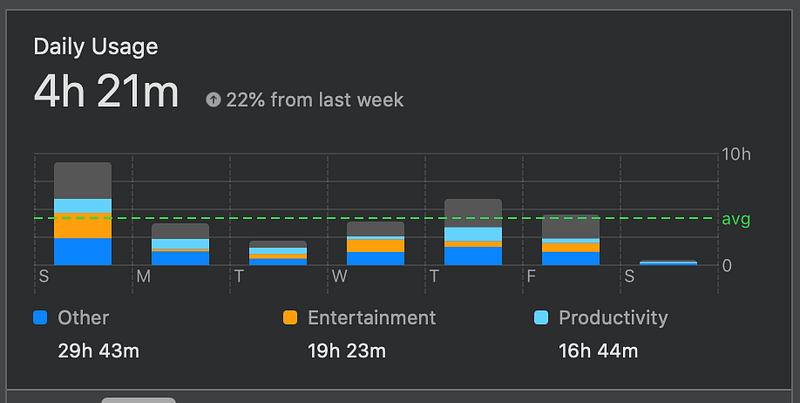
I’m proud of that number. In those four hours, I write one to two articles per day, read Medium, do all my life tasks (check on my finances, make loan payments, other boring to-do’s) and do some research into whatever I’m currently reading about. There are a lot of people who spend twice as long on their computer daily and get half as much done. It’s thanks to my minimalist laptop that I’m able to do so.
Here’s what my minimalist laptop looks like:
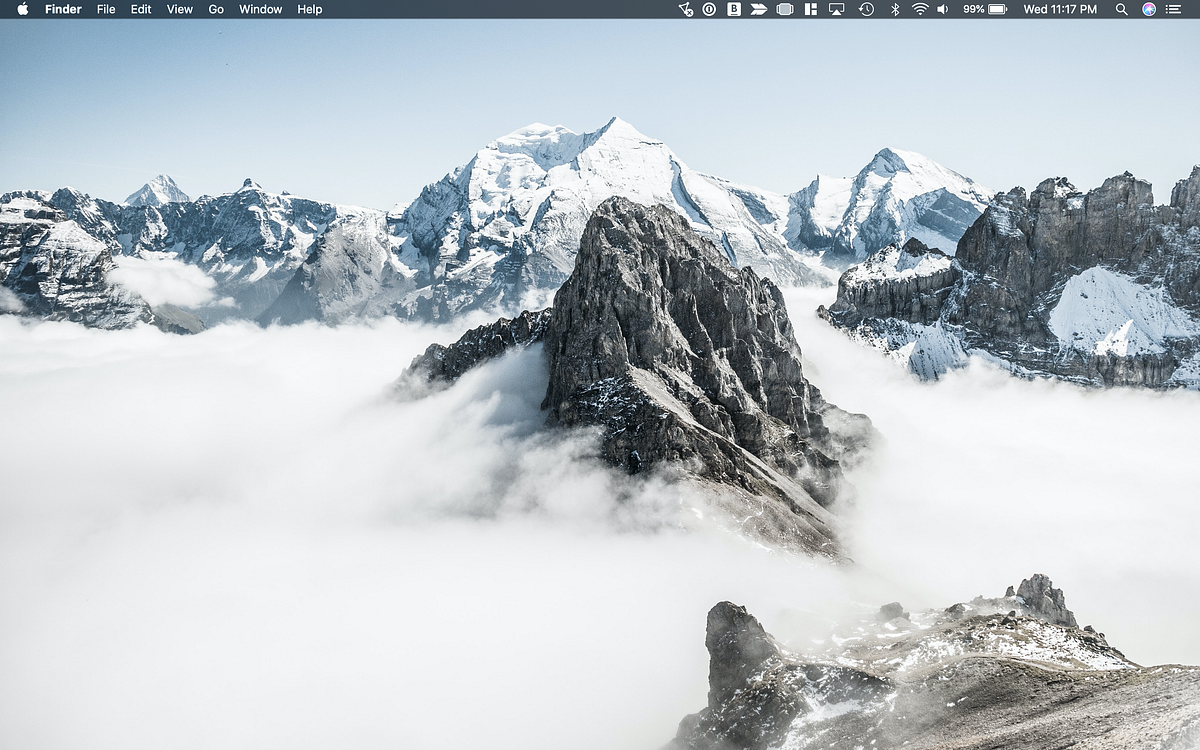
My Desktop
For my computer desktop, I follow the popular productivity advice to never keep things on my desktop, for several reasons:
- Every icon on your desktop is a distraction from what you want to be doing. Don’t allow distractions to get in your way.
- Every file on your desktop is a file that has not been processed. It might be a critical tax document, or it might be a garbage file that came with a download that needs to be deleted. Who knows? Not you, that’s for sure. Those files need to be sorted and put where they belong.
- Desktop icons slow your computer down. Not a lot, admittedly, but that sort of thing adds up. If you have hundreds of icons on your desktop, getting them off your desktop might very well produce a noticeable difference in the speed of your computer.
My Dock
As you can see from the above screenshot, my dock is configured to be hidden the vast majority of the time. But when I move my cursor to the bottom of my screen and bring my dock up, it looks like this:
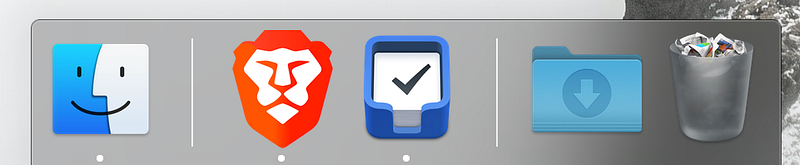
The only things in my dock are applications I am using at this very moment and a handy shortcut to my downloads folder, and I don’t even see this unless I move my cursor to intentionally view it.
You should configure your dock to be the same way — hidden unless you intentionally bring it up. This reclaims valuable screen real estate for your browser, applications, and whatever else you may be working on.
To enable this, right click your dock and select "Turn Hiding On".
As for how many icons your dock should have — I’m not saying you have to reduce your dock so much that it only has things you’re actively using at this moment, but neither should it have 20+ icons hanging around, most of which are for applications you never even really use. Take this moment to look at your dock and make sure the only things there
To add or remove things from your dock, drag the icon for the application over to the trash can. This will cause a little "poof" animation and remove the icon from your dock.
My Navigation
Like on my phone, I don’t really do much in the way of organizing folders, files, or applications on my computer. To get around my device, I just use Spotlight.
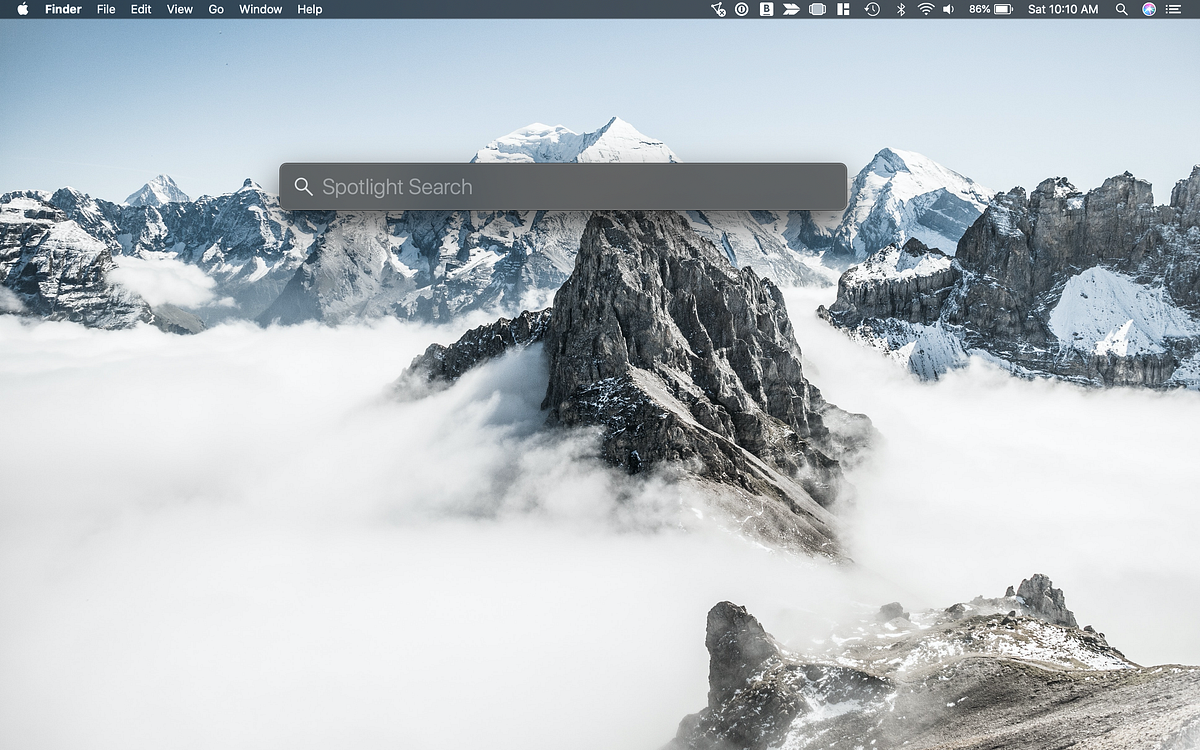
Spotlight is really easy to use. Simply press Command (⌘) and Space at the same time, and it will pop up. Type in the name of any application, file, folder, song, photo, or any other thing you are looking for, and your Mac will deliver it right to your screen.
My Browser
Since browser use is such a major part of desktop computing, my browser setup deserves its own window.
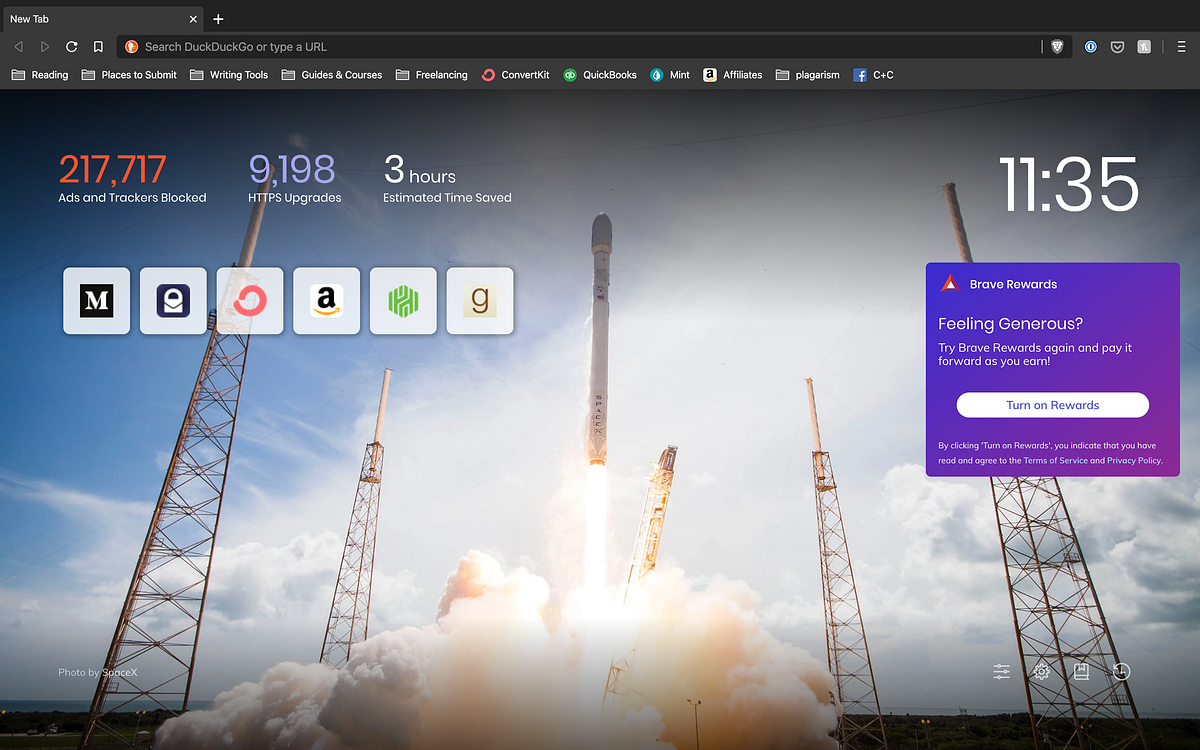
For my browser, I use Brave, and that is for one reason only — they protect my privacy. There are other browsers that are faster, have more features, and are cooler, but Brave is the only browser I trust with my data.
Start With One Tab
When it comes to tabs, I do something a lot of people don’t do: I close out of every tab and quit my browser at the end of every browsing session. At the start of every new browsing session, I start with one empty tab.
In fact, I quit all applications before shutting my laptop lid. Whenever I open my laptop, I open it to a clean desktop and no applications.
This is the digital equivalent of clearing your desk when you’re done working, or cleaning your dirty dishes right after cooking — it leaves your digital space clean and prepared for your next session of working.
It also means my computer is very fast, despite only having an m3 core. I don't have a massive amount of browser tabs or applications slowing it down. You don’t need to spend so much money on a computer if you make efficient use of the computer you have.
I imagine people find it difficult to close out of all their tabs for the same reason they find it difficult to get to inbox zero or quit side-projects that are going nowhere: they are unable to admit to themselves what they are or aren’t going to do. Each open tab is a to-do; “I’m going to read this article,” “I’m going to take action on this form,” so on and so forth.
It’s time for you to admit to yourself you are never going to look at those tabs. The key to focus and productivity across the board, not just on your Macbook, is learning to identify what actually does or doesn’t need to be done in the first place.
“There is nothing so useless as doing efficiently that which should not be done at all.”
— Peter Drucker
If I could only recommend to you one computer enhancement from this entire article, it would be this: learn to close out of all your tabs when you’re done browsing.
Extensions
Brave is compatible with Chrome extensions, so I use the following Chrome extensions:
- 1Password: To connect to my 1Password vault, which is synced across all my devices
- Pocket: To save articles that seem interesting into a list of articles I will probably never get around to reading
- Honey: To help me save money when I make online purchases (since my 2020 new year's resolution is to buy online, this will become more important)
- Grammarly for Chrome: The joy of good grammar, everywhere I am on the internet
- uBlock — free ad blocker: In addition to blocking ads across the internet, I’ve specifically configured uBlock to block Mint’s incessant free credit card offers. Mint is a great service, but the constant credit card offers drive me bonkers.
You’ll notice there are no distraction blockers (SelfControl, StayFocused, etc.) on this list. I don’t believe in time-restricted content blockers because I think if something’s bad for you, it’s bad for you all the time, not just some of the time. If there’s something I think I need to restrict myself from, I restrict myself from it across the board (using child lock settings, until the habit is broken). This has helped my productivity far more than any distraction blockers ever have.
Bookmarks
Unlike a lot of people, I make serious use of my bookmarks. Right now, my bookmarks are:
Reading: All the websites I care to read are in this folder. There are too many to list and I don’t read them terribly frequently (books and Medium are more than enough for me), but some standout entries include Aeon and Savage Love.
Places To Submit: This is a list of Medium publications for which I am not yet a writer and would like to become one. When I write a Medium article that isn’t a great fit for any publications I’m already a part of, I head to this list and see if there are any new ones I can submit to.
Bonus: There is a subfolder called “Paid” that has a list of Medium publications that pay for articles. I pitch to the publications on this list regularly. Right now, the only ones on there are:
1. Better Humans
2. Forge
Writing Tools: Thanks to computers, writers don’t need to rely on painstakingly reading drafts several times over to find errors. We can get computers to do the heavy lifting for us, using tools like Hemingway and Cliche Finder.
Computers can also keep track of things for me — things like the top Medium stories, the top Medium authors, and the top Medium publications. I don’t check these often, but they’re nice to have.
Lastly, I have a list of free stock photo websites. Unsplash photos are beautiful, but certain photos get used over and over. Heading to a website like Picjumbo or Pixabay allows me to use images readers haven’t seen before.
Guides & Courses: There are several hundred thousand more e-courses on the internet than there needs to be, but as long as they’re out there, I’m going to keep track of them. Anytime I come across an e-course or guide I think might be useful later on, I bookmark it here. (I have yet to actually come back to any of these, though, except for Dave Schools’ Writer Course, which I enjoyed immensely).
Freelancing: Doing freelance work isn’t a focus of mine right now, but in case I want to bring in a little more cash, I have bookmarked Upwork, Writer Bay and Reedsy.
Other: My other bookmarks are for:
- ConvertKit, my newsletter SaaS
- Quickbooks + Mint, my financial tracking system
- Amazon Affiliates
- a list of websites that have plagiarized my work
- the Craft+Commerce facebook site, where I am trying to sell a ticket I don’t want to use
Other Features
There are a lot of other features on Macbooks, such as using multiple desktops, widgets, Launchpad, notifications, the today view, so on and so forth. I don’t use any of them for the same reason I don’t own a dresser or an offsite storage unit — you don’t need to organize what you don’t own.
- I don’t need multiple desktops when I only have a handful of tabs and applications open.
- I don’t need Launchpad when I use Spotlight to search for all my navigation.
- I don’t need notifications when what few notifications I need to see already go to my phone.
- I don’t need the today view when the widget area of my phone already has everything I need to see.
If you use these features and they add value for you, more power to you. But if you don’t, I’m not going to tell you to use them; I’m going to tell you to stop using so many tabs and applications instead.
My minimalist laptop works for these reasons:
My laptop keeps me focused on my work.
The whole purpose of my laptop is to enable me to do the work I want to do. That work is mostly writing, with some money management, research, basic photo editing, and basic web design thrown in for completeness.
My minimalist laptop works because its design encourages me to do these things and discourages me from doing anything else. Notifications are turned off, files are kept out of the way, and browser windows are kept clean, all so I can focus on what I’m doing.
I am able to stop using my laptop once I’m done working.
The reason I only use my computer four or five hours a day, as opposed to eight or nine, is because I’ve designed my laptop to discourage doing anything but work. Any time spent on my laptop is, by definition, working time.
Why don’t I use my laptop to relax? The kinds of things you do on a laptop to relax (reading Reddit, reading the news, browsing Wikipedia endlessly) are things I’ve decided I don’t want to do on my laptop. I’d rather do these things on my iPad Mini.
Better yet, I try not to do these things at all. Instead, I like to use my free time exercising, cooking, meditating, having a smoke with friends, reading, taking a walk, watercolour painting, or anything else which isn’t sitting behind a computer screen.
How I Made My Laptop Minimalist
Unlike with my phone, my laptop has been minimalist for almost as long as I’ve had a computer. Being minimalist with my laptop has always been fairly easy for me. Like keeping a calendar and to-do list, keeping my computer clean is something I’ve just always done. But for those for whom it doesn’t come naturally, here are the keys that make it all work:
I store everything on the cloud
This is less about minimalism and more about data security; when you store everything on the cloud, you don’t need to worry about your computer breaking. I could drop my laptop in the toilet right this second and I wouldn’t lose any data because all of my files are stored on iCloud Drive.
This is extremely important to me because, unlike with physical possessions, I am not a file minimalist. I have every text message I’ve ever received, every photo, everything, stored somewhere on iCloud Drive.
Storing everything on iCloud Drive also makes it easy to find everything, because I always know where it is — iCloud Drive. If I ever have trouble finding anything, all I need to do is navigate to iCloud Drive, open Finder’s search function, and type in search terms until it pops up.
I learned keyboard shortcuts
If someone told me I could only navigate my computer by using the mouse and clicking, I’d go nuts. Navigating by keyboard shortcut is so much faster than navigating by mouse-clicking. I rely on a caché of keyboard shortcuts:
- Command (⌘) + Space for Spotlight
- Command (⌘) + Tab for switching applications
- Command (⌘) + Q for quitting applications
- Command (⌘) + W for closing the currently open window
- Command (⌘) + A for “select all”
- Command (⌘) + F for “find”
- Command (⌘) + Z for “undo”
- Command (⌘) + S for “save”
- Command (⌘) + C for “copy”
- Command (⌘) + V for “paste”
- Command (⌘) + N for opening a new window
- Command (⌘) + Shift + N for creating a new folder
- Command (⌘) + P for “print”
- Enter allows you to change a file or folder name while it is selected
I’m sure that’s not all of them, but that’s all of the ones I can think of off the top of my head.
There are also a number of keyboard shortcuts that I haven’t learned yet that I would like to:
- Command (⌘) + 1, 2, 3, etc for tab switching in Brave
- Command (⌘) + T for opening a new tab
- Command (⌘) + L for selecting the browser URL field
- Option + Arrow Keys for jumping to the next or previous word in a text field
Using these keyboard shortcuts shaves not just seconds off the time it takes to do things, but sometimes minutes. My clients have always remarked on how fast I’m able to deliver copywriting, and that’s in part because I’ve learned a variety of keyboard shortcuts that enable me to work as fast as thought.
I learned touch typing
The other reason I’m able to deliver copywriting so quickly is that I’ve learned how to touch type. Touch typing is that style of typing wherein you use all five fingers on each hand to type by muscle memory, instead of looking down at the keyboard and using the first one or two fingers on both hands as most people do.
Touch typing looks impressive, and it is fantastically useful, and it doesn’t take that much time to learn. Simply spend ten minutes a day on typingclub.com practising, and you’ll be able to touch type efficiently in one or two weeks.
A word of warning: Once you start practicing touch typing, your typing efficiency will go down for a week or two, as you struggle to unlearn your old habits of typing and replace them with new ones. Don't be discouraged; pushing through this slump is well worth it.
Making these minimalist changes to your laptop will not forcibly transform you into a workhorse of productivity. The only thing that can make you productive is you. But, making these changes will make it much easier for you to adopt a mindset of focus and motivation for your work, which will make it that much easier for you to achieve what you want to achieve.
Want to be seriously productive?
If you want to get on top of your to-do list and finally start getting stuff done, my free productivity email course will help you.
Enjoy this kind of writing?
I send one email a week about AI, intentional living, and doing meaningful work in a world that won't stop changing. Join 700 other subscribers.
Keep Reading
Your Clothes Use More Water Than Your AI
The environmental case against AI doesn't survive contact with the data
Apps Will Soon be Replaced by AI
The first new computing interface in sixty years doesn't need them.
AI Is Building the Biggest Porn Machine in History
The industry that monetizes child rape videos just got mechanized production